

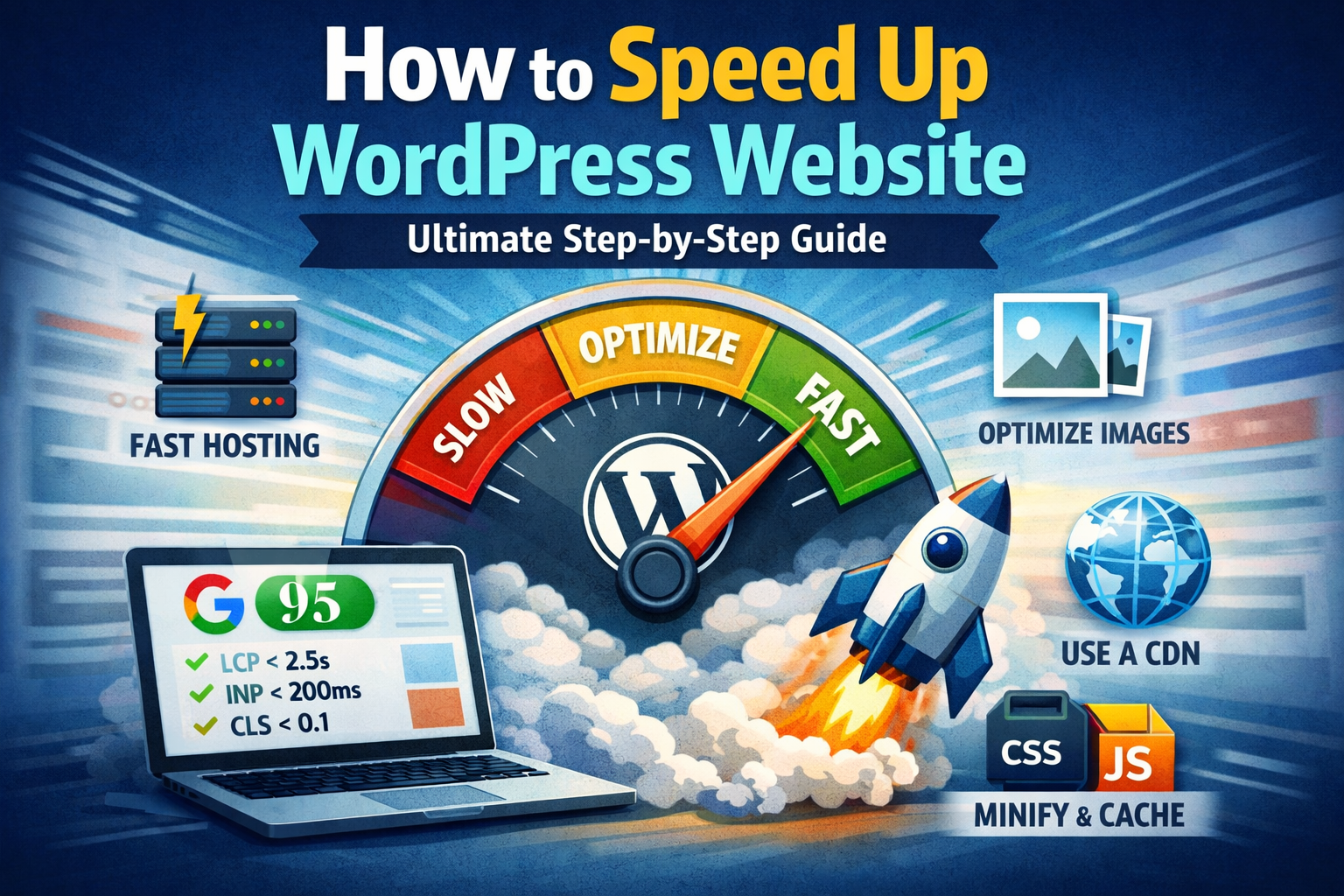
How to Speed Up WordPress Website – Ultimate Step-by-Step Guide
How to speed up WordPress website is still one of the most frequently asked questions among site owners, bloggers, store managers, and developers — because page speed directly affects Google rankings, bounce rate, conversions, user satisfaction and even advertising costs.
A slow WordPress site loses you visitors (Google research shows 53% of mobile users leave pages that take longer than 3 seconds), hurts organic visibility (Core Web Vitals are ranking factors), increases bounce rate, lowers trust and raises ad spend (worse Quality Score in Google Ads/Facebook).
The great news? Most WordPress sites can realistically go from 5–10 seconds load time down to under 2 seconds — and many of these improvements are free or extremely low-cost.
This is the most complete, practical guide available on how to speed up WordPress website — from beginner fixes anyone can do immediately, to intermediate and advanced techniques used by high-traffic sites.
Whether your site is a blog, WooCommerce store, membership platform, portfolio, news site or corporate page, follow these steps and target:
- Largest Contentful Paint (LCP) < 2.5 seconds
- Interaction to Next Paint (INP) < 200 ms
- Cumulative Layout Shift (CLS) < 0.1
- Google PageSpeed Insights mobile score > 85–90
Let’s start making your WordPress site fast.
Step 1: Measure Your Current Speed Before Any Optimization
You cannot improve how to speed up WordPress website without knowing your starting point.
Recommended free speed testing tools
| Tool | Best For | Key Metrics You Get | Mobile / Desktop | Recommendation |
|---|---|---|---|---|
| Google PageSpeed Insights | Core Web Vitals + quick fixes | LCP, INP, CLS, Performance score | Separate reports | Start here – official Google data |
| GTmetrix | Detailed waterfall & recommendations | LCP, TBT, Speed Index, fully loaded | Combined + separate | Best waterfall analysis |
| WebPageTest | Real-user simulation, multiple locations | First Contentful Paint, Speed Index | Fully customizable | Advanced testing |
| Lighthouse (Chrome DevTools) | Instant local audit | All CWV + diagnostics | Mobile emulation | Quick daily checks |
| Pingdom Website Speed Test | Simple global overview | Load time, page size, requests | Single location | Easy summary |
Action checklist
- Test your homepage + 2–3 key inner pages
- Record current numbers:
- Performance score (0–100)
- LCP (aim <2.5 s)
- INP (aim <200 ms)
- CLS (aim <0.1)
- TTFB (Time to First Byte)
- Total page size & number of requests
- Take screenshots — compare after each step
External resource: Google PageSpeed Insights – https://pagespeed.web.dev/
Step 2: Upgrade to Fast WordPress Hosting (Biggest Single Speed Win)
The single biggest factor when learning how to speed up WordPress website is usually hosting.
Even perfect optimizations cannot overcome a slow server.
Recommended hosting types right now
| Hosting Type | Speed Level | Best For | Typical Monthly Price | Recommended Providers |
|---|---|---|---|---|
| Managed WordPress | Very fast | Blogs, small–medium stores | $10–$50 | Kinsta, WP Engine, SiteGround, Cloudways |
| LiteSpeed / NVMe Cloud | Extremely fast | High-traffic sites | $8–$40 | Namecheap EasyWP, Hostinger, Rocket.net |
| Application Hosting | Fastest | Headless / Jamstack WordPress | $0–$30 | Vercel, Netlify, Render |
| VPS / Cloud (self-managed) | Fast | Developers, full control | $5–$30 | DigitalOcean, Linode, Vultr |
Immediate actions
- If you are on basic shared hosting → switch to managed WordPress or LiteSpeed
- Enable HTTP/3 (QUIC) + HTTP/2
- Use PHP 8.2 or higher
- Activate OPcache and Redis object caching
Expected improvement: 0.5–4 seconds faster Time to First Byte (TTFB)
Step 3: Optimize Images – Usually the #1 Speed Killer
Images frequently make up 40–70% of total page weight — making image optimization one of the most powerful steps in how to speed up WordPress website.
Proven image optimization steps
- Switch to modern formats
- WebP (lossy + lossless) → 25–35% smaller than JPEG/PNG
- AVIF → 40–50% smaller (now supported in all major browsers)
- Compress images without visible quality loss
- Free online tools: TinyPNG, Squoosh.app, ImageOptim
- WordPress plugins: ShortPixel, Imagify, Smush, EWWW Image Optimizer
- Serve responsive images correctly
- Use srcset + sizes attributes
- Example code:
HTML
<img
  src="low-res.webp"
  srcset="low-res.webp 480w, mid-res.webp 768w, high-res.webp 1200w"
  sizes="(max-width: 480px) 480px, (max-width: 768px) 768px, 1200px"
  alt="Product photo example"
  loading="lazy">
- Enable lazy loading for images below the fold
- Native HTML attribute loading=”lazy” (WordPress 5.5+ applies automatically to most images)
- Plugins: WP Rocket, FlyingPress, Perfmatters
- Serve images via CDN + automatic optimization
- Cloudflare Polish (free & paid plans)
- Bunny Optimizer, Imgix, Cloudinary
Expected result: 30–70% smaller image payload → 1–4 seconds faster load time
External resource: Google Developers – WebP & AVIF guide https://developers.google.com/speed/webp
Step 4: Remove Render-Blocking CSS & JavaScript
Anything that blocks rendering delays Largest Contentful Paint (LCP) and First Contentful Paint (FCP).
Modern solutions
- Inline Critical CSS
- Extract only above-the-fold CSS → inline it in <head>
- Tools: WP Rocket, FlyingPress, Perfmatters, Autoptimize + CriticalCSS
- Defer or Async non-critical JavaScript
- Add defer or async attribute to script tags
- Inline critical JS, defer everything else
- Remove unused CSS & JavaScript
- PurgeCSS, Asset CleanUp, Perfmatters
- WP Rocket / FlyingPress “Remove Unused CSS” feature
- Minify & combine CSS/JS files
- Autoptimize, WP Rocket, Fast Velocity Minify
Expected result: 0.5–2.5 seconds faster LCP
Step 5: Enable Browser Caching & Modern Compression (Brotli)
Browser caching Set long expiration times for static assets.
.htaccess example (1-year cache for images, CSS, JS, fonts):
<filesMatch ".(jpg|jpeg|png|gif|webp|avif|css|js|svg|woff2)$">
Header set Cache-Control "max-age=31536000, public"
</filesMatch>
Compression
- Prefer Brotli over GZIP (better compression ratio)
- Cloudflare → enable Auto Brotli (free)
- LiteSpeed / Nginx → enable Brotli module
Expected result: 20–70% smaller file sizes on repeat visits → much faster returning visitors
Step 6: Add a Fast CDN (Content Delivery Network)
A CDN copies your static files to servers around the world → reduces latency for global visitors.
Best CDNs for WordPress right now
| CDN | Starting Price | Best For | Standout Feature |
|---|---|---|---|
| Cloudflare | Free – $20+/mo | Everyone | Free SSL, Polish image optimization, Brotli |
| BunnyCDN | $1–$10/mo | Budget + performance | Ultra-low latency, image optimizer |
| KeyCDN | Pay-as-you-go | Mid-size sites | Affordable + image processing |
| StackPath | $10+/mo | Enterprise | Edge security + WAF |
Action
- Enable CDN for images, CSS, JS
- Activate automatic image optimization (Polish, Mirage, etc.)
Expected result: 0.5–4 seconds faster global load time
Step 7: Optimize Fonts, Third-Party Scripts & Database
Fonts
- Prefer system fonts or subset Google Fonts
- Preconnect & preload important fonts:
HTML
<link rel="preconnect" href="https://fonts.gstatic.com" crossorigin>
<link rel="preload" as="font" href="..." type="font/woff2" crossorigin>
Third-party scripts
- Lazy-load YouTube embeds, Google Maps, social widgets
- Self-host analytics when possible
- Use async/defer on non-critical scripts
Database cleanup
- Remove post revisions, spam comments, transients
- Plugins: WP-Optimize, Advanced Database Cleaner, WP-Sweep
Expected result: 0.3–1.5 seconds faster load time
Step 8: Monitor, Test & Continuously Improve
Recommended monitoring tools
- Google Search Console → Core Web Vitals report
- PageSpeed Insights API + Looker Studio dashboard
- GTmetrix / WebPageTest scheduled monitoring
- Real User Monitoring (RUM): DebugBear, SpeedCurve
Ongoing action plan
- Run full-site audits monthly
- Fix any regressions immediately
- A/B test changes (image format, CDN provider, caching level)
Real-World Before / After Case Studies
Case 1 – WordPress Blog Before: LCP 4.8 s, CLS 0.45, Performance 38/100 After: WebP images + critical CSS + BunnyCDN + defer JS → LCP 1.9 s, CLS 0.05, Performance 92/100 Result: Organic traffic increased by 48% in 3 months
Case 2 – WooCommerce Store Before: LCP 5.2 s, mobile score 45/100 After: Image optimization + Cloudflare Polish + unused plugins removed → LCP 2.1 s, mobile score 89/100 Result: Conversion rate increased by 22%
Case 3 – Custom Headless WordPress Before: TBT 1,200 ms, INP 320 ms After: Code splitting + lazy loading + edge caching → TBT 180 ms, INP 85 ms Result: Bounce rate decreased by 35%
Final Thoughts
Mastering how to speed up WordPress website is one of the most impactful improvements you can make for your site.
Focus on these priorities in order:
- Fast hosting
- Image optimization
- Critical CSS & defer JavaScript
- CDN + caching
- Fonts, third-party scripts & database cleanup
- Continuous monitoring
Target results:
- LCP < 2.5 seconds
- INP < 200 ms
- CLS < 0.1
- Mobile PageSpeed Insights score > 85
Ready to make your WordPress site fast, modern and competitive?
Progriso specializes in high-performance WordPress sites — from speed audits and Core Web Vitals optimization to modern hosting migrations and full-site performance upgrades.
- Get your free WordPress speed audit & 30-minute consultation: https://progriso.com/book-a-free-discovery-call/
- Explore our WordPress development & optimization services: https://progriso.com/website-development/
- View real project examples: https://progriso.com/portfolio/
- Contact us directly: https://progriso.com/contact/
Let’s get your site loading under 2 seconds and ranking higher.